




How do you use face recognition to unlock a phone wearing a mask? With a few simple steps for iPhone and Android, you can set this up easily.
Find more technology guides, tips and advice
Wearing protective masks is becoming standard. But if you want to unlock your smartphone in public using face recognition, there is a problem: with your face half covered, you will no longer be recognized and will have to enter your PIN instead. But before you turn facial recognition off altogether, you can try out a trick – the “alternative appearance”, already previously available on Android and recently rolled out by Apple to make it easier on an iPhone to unlock when wearing a mask.
Steps to unlock a phone wearing a mask
iPhone
You can try configuring an alternative appearance with a mask for Face-ID. Follow our step-by-step instructions or take a look at the quick guide .
- Open iPhone settings and tap ” Face ID & Code “.
- Then enter your code to unlock the iPhone.
- Now tap on ” Configure alternative appearance ” …
- … and then on ” Let’s go “.
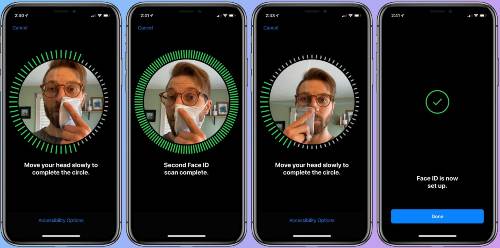
- Now hold the mask half in front of your face and follow the instructions on your iPhone. This may not work on the first try, just try moving the mask around until your iPhone recognizes you. If everything worked, you should now be able to unlock your iPhone with a mask.

Android
You can save an alternative look on Android devices with facial recognition. If you do this with the mask on, you should still be able to unlock your cell phone in spite of the protective mask. Follow our step-by-step guide or take a look at the quick guide .
Note: The names of the menu items can differ from device to device. Most of the time they are similar and the way is the same everywhere.
- Open the settings of your smartphone and tap on ” Biometry & Password ” / ” Biometric data and security “.
- Then go to ” Facescan ” / ” Face Detection “.
- Now tap on ” Register alternative look ” / ” New alternative look “.
- Now put on your protective mask , tap on ” Register face ” and follow the instructions on your smartphone to configure face recognition.
Brief instructions: Face-ID
- Open the settings , tap on ” Face ID & Code ” and now enter your code.
- In the Face ID settings, tap on ” Configure alternative appearance ” and then on ” Let’s go “.
- Now fold your face mask in the middle and cover only half of your face with it . Then follow the instructions on your iPhone to set up a new Face ID.
Quick Start Guide: Android
- Open the settings and tap on ” Biometry & Password ” / ” Biometric data and security “.
- Then go to ” Facescan ” / ” Face Detection “.
- Then tap on ” Register alternative look ” / ” New alternative look “, put on your protective mask and follow the instructions of the smartphone.
