
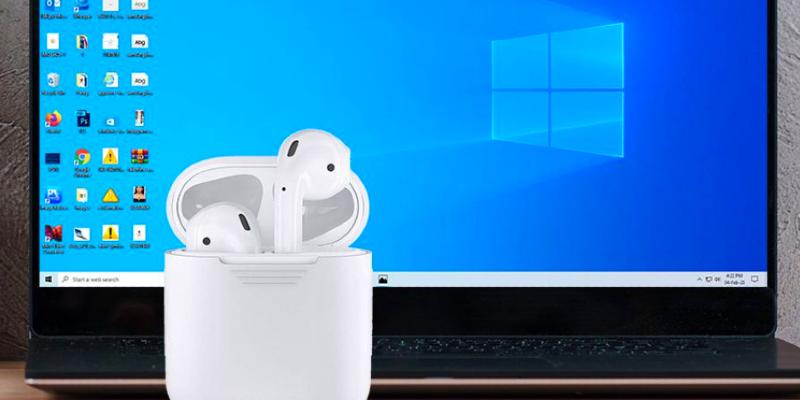



Step-by-step guide outlines how to connect AirPods to PC computer – desktop or laptop – Mac computers, iPhone, iPad, Android, Xbox or PS4.
Find more technology guides, tips and advice
- The iPhone ‘problem’
- How to connect AirPods to iPhone
- How to connect AirPods to iPad
- How to connect AirPods to Windows 10
- How to connect AirPods to a Mac computer
- How to connect AirPods to PS4
- How to connect AirPods to Xbox
- How to connect AirPods Pro
- How to connect AirPods without case
- AirPods connected but no sound
- Conclusion
Unusual for Apple (which generally only lives in the Apple universe), but the AirPods not only work with iPhone, iPad, etc. , but also with Android smartphones and even Windows computers, and below you will find the steps for how to connect AirPods to PC, desktops, laptop, iCloud, Mac and Macbook.
The iPhone ‘problem’
It’s worth noting that your Apple AirPods can be easily connected to your MacBook. However, the Apple AirPods have a special way of connecting to the iPhone. And that’s because all new iPhones have a special audio processor chip. These work with Apple AirPods to give the audio played on the iPhone a clearer and crisper sound quality.
The Apple AirPods still sound great no matter what device you plug them into – they just don’t have the extra “OOMF” that the audio processing chip in the iPhone can provide. But, you still get far better sound than through the built-in speakers when you know how to connect AirPods to PC computers!
How to connect AirPods to iPhone
When it comes to earbuds for iPhone, AirPods are a perfect match as they share the same Apple ecosystem. It is intended for everyone, but especially for active and mobile people. You won’t be bothered by a long cable connecting your headphones and iPhone. It’s so efficient to use. When you’re not using it, you can take it out of your ears, store it in the charging case, and put it in your pocket. If this is your first time user, here’s how to connect AirPods to iPhone.
Connecting your new AirPods to iPhone only takes a few seconds if you get it right. Before we start with the steps for how to connect your AirPods, make sure you have updated your iPhone to the latest iOS version.
- Unlock the iPhone, get the AirPods and place them next to your iPhone.
- Open the AirPods case and it will automatically connect to the iPhone.
- If the connection process goes well, a prompt will appear on the iPhone screen. Tap Connect.
- If available, follow the on-screen instructions, and then tap Done.
- If you’ve ever connected the AirPods or want to reconnect them to your iPhone, press and hold the button on the back of the charging case.
- Return to the home screen and tap the My Search app. You will see your AirPods are on the list.
How to connect AirPods to iPad
You can connect the AirPods to any iPad or iPod with iOS 10 or later. Alternatively, you can connect it to your Apple Watch (watchOS 3 or newer), Apple TV (tvOS 11 or newer) or your Mac with at least macOS Sierra. We’ll show you how to connect AirPods to iPad.
- First, switch to the home screen. Also, make sure the AirPods and case are already charged.
- If you haven’t already done so, switch on Bluetooth. Then open the case and hold it next to your device.
- A setup animation should now appear on the screen. Tap on “Connect” and then on “Done”. The AirPods are now connected and ready to use.
How to connect AirPods to Windows 10
Apple AirPods and Windows 10 – do they actually fit together? Yes, you can connect the wireless Apple headphones to a PC via Bluetooth. How to connect to AirPods in Windows 10 is explained in the following instructions.
How to connect AirPods to laptop or desktop: you need this
For this, the prerequisites have to be right: You definitely need a laptop or Windows PC with Bluetooth. While many laptops have bluetooth installed ex works, the wireless technology of PCs sometimes has to be upgraded. If this is the case with your computer or laptop, all you need is a small USB plug that makes your computer fit for Bluetooth. This is available in stores and online for a few dollarss.
- Activate Bluetooth and put Apple AirPods in pairing mode
- Select and connect Apple AirPods in Windows 10
- Now select “Connect” from the Info Center in the Windows 10 taskbar to connect the computer to the AirPods.
- If everything went well, you will now see AirPods in the “Connect” window of Windows 10. Now click on the corresponding entry with the AirPods to establish a connection between them and your computer.
- After the one-time pairing, you can now connect your AirPods quickly and easily at any time via your computer’s Info Center.
- You can also use playback and speaking functions with your AirPods on a Windows PC, but not the Siri voice assistant, which can only be used on Apple devices.You are stuck?
Summary
- Apple AirPods can also be connected to a Windows PC via Bluetooth
- First make sure that Bluetooth is switched on on the PC, otherwise activate it via the Info Center in the taskbar
- Put AirPods in pairing mode: Insert AirPods in case and open lid
- Press and hold the setup button on the back of the case until the white light starts to flash
- Click Connect in the action center and click Apple AirPods to connect
How to connect AirPods to Android
- Open the “Settings” on your Android smartphone.
- Touch the “Bluetooth” entry to activate the Bluetooth function.
- Your smartphone will now search for available devices with which it can connect.
- Now put the AirPods in the charging case and leave it open.
- There is a setup button on the back. Press the button until the LED flashes white.
- Now you can also see the AirPods on the smartphone in the available Bluetooth devices. Connect the AirPods with one tap.
How to connect AirPods to a Mac computer
What about the MacBook? Or MacBook Air? The MacBook Pro? What if you are tired of using the standard speakers in these laptops and want to improve the sound quality a little with the Apple AirPods? The good news is that this type of connection is very possible.
iCloud and Apple AirPods
If you already have your Apple AirPods connected to your iPhone and signed in to your iCloud account on all devices, you can easily use your Apple AirPods with your MacBook, MacBook Air or MacBook Pro – including your Mac Pro or iMac! Go to your Apple computer of choice and log in with your username and password. Once you’re there and ready to use the Apple AirPods, you’ll want to hit the Bluetooth button in the top right corner of the screen in the menu bar.
Once you hit that Bluetooth button, you can simply scroll through the list of available Bluetooth devices and select your Apple AirPods. If they are already in use with your iPhone, this will disconnect them from the iPhone and transfer them to an Apple computer of your choice. Once you are done with your computer and close the lid, you can use your Apple AirPods with your iPhone as normal.
How to connect AirPods to a Mac desktop computer
- To connect the AirPods to your Mac, you ‘ll have to follow almost the same steps.
- Put the AirPods back in the case and hold the setup button until the LEDs flash white.
- Now select “System Preferences” on the Mac and click on “Bluetooth”.
- Select your AirPods and now connect them to the Mac.
How to connect AirPods to MacBook
To use Apple’s wireless headphones, you first need to connect them to a device on which you want to listen to or watch your music or videos. You can also connect the AirPods to your MacBook and listen to your files wirelessly. The pairing of the AirPods with the MacBook goes as follows:
- First, go to Settings on your MacBook. All you have to do is click on “System Settings” under “Apple”.
- Here you can now select the option “Bluetooth”. If necessary, switch this connection on, as it is required to connect the AirPods.
- In order to pair your headphones with the MacBook, you first have to put them in the supplied case. However, leave it open and do not close it.
- There is now a so-called set button on the back, which you have to hold down until the LED lights up white.
- The AirPods should now be displayed under the Bluetooth devices on your MacBook. Here you can then click on “Connect”.
How to connect AirPods to PS4
Many people use gaming to recover from a busy day at work. In order not to disturb others, it is a good idea to use a headset to play. Because of this, the question arises whether it is possible to use the AirPods instead of a headset.
In principle, you can connect all Bluetooth headphones to the PS4. However, the connection does not always work with the AirPods. In general, Playstation only guarantees that all Bluetooth headsets that are specified on the packaging can be connected to the device. The AirPods or Apple products are not included. However, it is worth doing the test:
- Start your Playstation and open the settings on the device.
- Go to the “Devices” section in the menu and select “Bluetooth devices”.
- Start by looking for available devices. Meanwhile, press the setup button on the case in which the AirPods are located.
- Wait for the start bar to flash and only then release the setup button.
- A list of compatible and available devices should now appear on your screen. From there, select the AirPods.
- Click the AirPods and confirm that you want to connect.
- If the connection could not be established, a Bluetooth dongle, such as the Avantree Leaf Dongle Stick, can help.
How to connect AirPods to Xbox
If you’ve been wondering if AirPods can connect to Xbox One, you might be surprised by the answer. Technically, the answer is no as the Xbox One doesn’t support Bluetooth pairing. Because AirPods are Bluetooth headsets, they cannot be connected to the Xbox One or its standard controller.
However, there is a workaround for this problem. This means that you can use your AirPods on Xbox One. This is not as easy as it is on devices that support Bluetooth technology. Read on for detailed instructions.
Here is a link for the Microsoft Xbox Official Store where you can buy the controller. Do not worry. You don’t have to pay for the controller if you don’t want to. There is also a free solution.
However, you need a compatible Android device (Android 6.0 or higher) or iOS device (10.3 or higher). That’s true; You can use the Xbox app from the Google Play Store for Android or the App Store for iOS
Once you’ve installed the Xbox app on your Android or iOS device, it’s easy to use your Airpods while playing or streaming on Xbox One. Your device must be compatible with the AirPods or AirPods Pro you are using.
In all fairness, AirPods are designed to work on Apple products, which means things are way better on an iPhone or iPad than they are on an Android phone. Still, most modern Android devices (phones and tablets) are compatible with AirPods, or at least with their basic functions. You have bluetooth.
Here’s how to easily use the Xbox app with your AirPods:
- Make sure you connect your Android or iOS tablet or phone to your AirPods. Also, make sure you are connected to the internet via WiFi. Only use your data if you have an unlimited plan.
- Launch the Xbox app on your phone and sign in with your Xbox (Microsoft) credentials. Make sure it’s the same account you use on Xbox One.
- For those who have already used the Xbox app on their device, this is easy. Otherwise, select Add New Account and enter the correct Microsoft credentials.
- When you’re done, tap Let’s Play.
- Select the Parties menu.
- Vote to start a party and it’ll be put together instantly.
- Tap the Invite to Party option to add your Xbox friends. Add as many as you want by tapping their names.
- Press Invite Invite to invite all of the selected people.
- You will receive a notification inviting you to join.
- Now you can put on AirPods and start a voice chat with your gaming team.
- If you want to stop at anytime, tap Party Out and remove your AirPods.
How can the connection fail?
The AirPods may not be found. This may be due to the fact that the maximum number of devices is connected to the Playstation 4. In this case, delete unnecessary connections and try again. Or, the system version of your AirPods might be preventing a connection. In this case, it makes sense to switch to an alternative Bluetooth headset.
How to connect AirPods Pro
- First, open the lid of your AirPods Pro case.
- Press the button on the back of the charging case and keep it pressed.
- Do this until the LED between the two AirPods begins to flash white. With the second generation AirPods and the Pro models, the LED is located on the front of the charging case, with the first generation you can find it in the case.
- Hold your iPhone or iPad near the earbuds. Now a window should open where you tap on “Connect”.
- If the pairing was successful, tap “Done”. Now your AirPods Pro will connect automatically when you take them out of the case.
General information on how to pair AirPods
- Go to the homepage.
- Open the case that the AirPods are in and hold it next to your iPhone.
- A setup animation will appear on the iPhone.
- Tap on “Connect”.
How to connect AirPods without case
If you took the Airpods out of the case beforehand, they are active and should also be able to be connected to an end device.
AirPods connected but no sound
Anyone who owns AirPods can usually look forward to reliable wireless headphones. But of course that’s just the theory. In practice it can happen from time to time that these also weaken. Another problem could be that your phone is connected to the AirPods, but you don’t get any sound. The reasons for this are rather difficult to determine and not always to be found straight away.
One reason for this problem could be that the Bluetooth connection between the mobile phone and the headphones is insufficient due to the distance between the devices. But the use of third-party apps can also be the cause. The app’s Bluetooth tracker could simply be too weak or bad, which could lead to sound problems.
But forgotten or neglected updates could also be the reason. Always make sure that you have the latest version of the operating system on your smartphone so that AirPods and mobile phones can communicate and pair with each other without problems.
You have these possible solutions
As you can see, there is not the problem is that if your AirPods are connected, but you get no sound. Rather, you should simply restart the AirPods before looking for any causes. That sounds banal at first, but a restart can actually work wonders.
You do this by placing the 1st and 2nd generation AirPods or the Pro model in the charging case for at least ten seconds. The AirPods Max, on the other hand, can be restarted by pressing the Digital Crown and the “Noise Control” button simultaneously for about 15 seconds. You can read here how to reset them to the factory settings.
Another option is to re-pair or synchronize your mobile phone and headphones. To do this, you first have to decouple both devices from each other. To do this, go to the Bluetooth settings of your smartphone and disconnect the connection. It basically works smoothly. If you do have problems, these tips will help you.
Conclusion
If your smartphone is connected to your AirPods but there is no sound, then the causes are not always entirely clear. Restarting the AirPods or pairing the two devices again usually helps. If that doesn’t help either, things will get tricky because either your smartphone or your AirPods will be defective.
 Nathan James lives for gaming, and is a fan of everything from vintage Pong to the latest virtual reality games. He also loves to tinker with hardware in that never-ending search for more power and speed.
