




If you have been thinking about creating a blog with the most popular blogging platform WordPress, then you should read this guide. Because with the new SeekaHost hosting control panel you will start a WordPress blog in 8 easy steps within a few minutes.
How to use lifestyle blogs to boost a busines
Before you can set up a WordPress blog you need a domain name and web hosting. Web hosts will offer you different types of hosting available like shared hosting, WordPress, VPS, and Dedicated Server hosting.
For a WordPress blog, the best hosting recommended is the WordPress hosting as it is WordPress optimized, meaning it may offer specific WordPress features like installing WordPress with the one-click installer for example.
In this article you will learn how easily and quickly you can set up your website with the one of the best WordPress Hosting control panel developed by SeekaHost, which is especially designed for WordPress bloggers. All it takes is 8 steps and if you are fast, just 10 minutes of your time.
How does the SeekaHost WordPress Hosting Control Panel make launching a website faster?
SeekaHost WordPress hosting offers a unique SeekaPanel that makes it faster and easier to manage your WordPress blogs. You can integrate and launch your WP sites with just a few clicks in 60 seconds.
You will find everything you need with the SeekaPanel, starting from domain registration functions to analytics tools integrations. Most integrations have 1-click installers and so only take a few seconds to activate. So, check out these top-notch features packed in every WordPress hosting package included with the SeekaPanel:
- No set up fees or long-term contracts, simple and flexible pricing via the 1-click hosting plan subscription feature, where you can choose to pay monthly or annually and upgrade or downgrade your plans any time with one click.
- You can secure your website with a free 1-click SSL certificate installation.
- Migrate an existing WordPress Site to SeekaHost for free with the support team.
- Take regular backups of all your website content with the 1-click backup download feature.
- Automatic and regular WordPress updates.
- Register your domain and hosting subscription in a few minutes.
- One-click WP blog set up.
- Immediate WordPress support and remote support via live chat and email ticketing system.
- Set up an email account with the integrated 1-click email installation feature.
- Integrate tracking sites like Google Analytics or Clicky inside the control panel to keep track of your website’s live traffic data.
Additional SeekaPanel Features:
You can also create a business email with 1-click by entering an email name and password. And the ultimate bonus is the tracking sites feature where you can access your live data analytics inside the app.
How to Start a WordPress Blog with the SeekaHost SeekaPanel in 10 minutes
You will not come across a control panel that offers such an ease and flexibility to launch a WP blog in just a few minutes.
8 Easy and Fast Steps to use the SeekaPanel with WordPress:
1. Register your Account
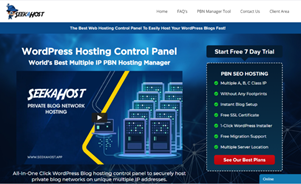
To get started, first visit https://www.seekahost.app/.
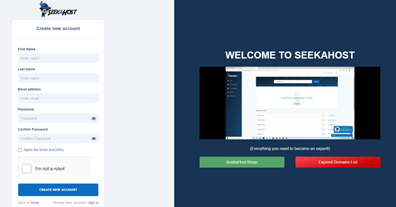
Register and create a new account at https://portal.seekahost.app/register so that you can then login.
2. Register a Domain
Now you can see your dashboard.

To start a blog, you need a domain name that you can get register with SeekaHost for just $10.49 for the first year.
Simply enter the domain name in the search box and check for its availability. If the domain is available, add it to the cart, complete adding your personal details, and choose the payment method.
Once your payment is successful, you will get a domain registration confirmation email in your inbox, and you have purchased your virtual property.
3. Purchase WordPress Hosting for your Website
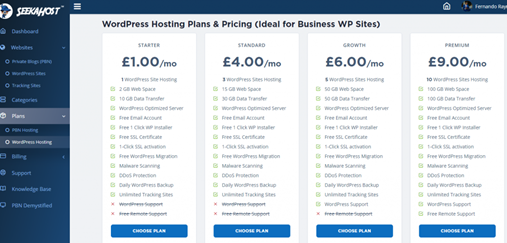
Go to the plans section in the left-hand menu and choose a WordPress hosting plan that is suitable for your requirements (to begin with the starter plan is fine, but as your website grows and contains more content, you may require a bigger plan).
4. Install your Domain
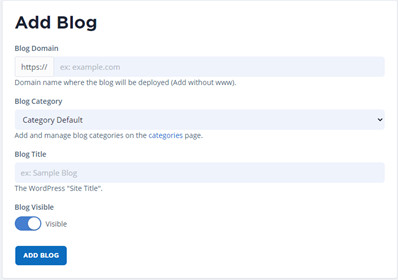
After you have purchased your plan, you can integrate your previously purchased domain name by installing WordPress to your domain name with the 1-Click WordPress installer in just 60 seconds.
5. Adjust Domain Name Servers
Once WordPress is installed, change the name servers to ensure they are correctly configured. Simply copy the Nameserver 1 and 2 and go to the domain settings. Click on “Manage Nameservers” and paste both the nameservers in their respective fields.
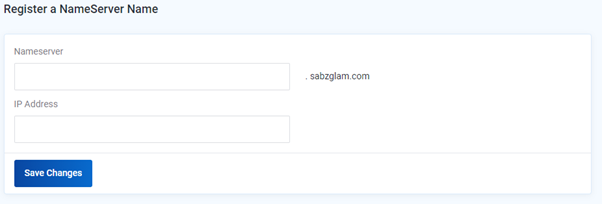
Watch this short tutorial for this process:
6. SSL Certificate Activation
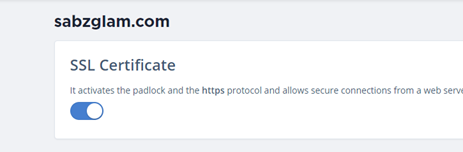
To ensure the data transferred via your website is secure, you can activate your SSL certificate for free with one click.
7. Log into your WordPress Site
Visit your WordPress site login page by clicking the login link that has been sent to you by SeekaHost via email after your WordPress site was installed.
Enter your username and password to access the WordPress dashboard that has been sent to you by SeekaHost. You can also find it inside your SeekaPanel dashboard.
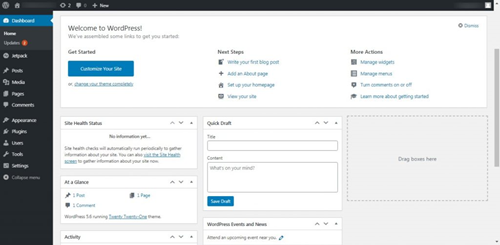
8. Set up your WordPress Website
Your website is now live with your domain name, and you can basically start blogging. However, there are a few technicalities to consider so watch the video guide below covering all the steps on how to create a blog on WordPress with SEO as well with the SeekaPanel to ensure the perfect set-up.
Hopefully, these 8 easy and fast steps will help you to quickly set up your WordPress website and get started as a blogger or freelancer – do not forget to set the timer!
Get Online Fast with 8 Easy Steps
Now that you know about all the benefits, features and quick steps to use the blog hosting platform SeekaPanel to start your WordPress blog or website, you have nothing to lose apart from maximum 10 minutes of your time. And you will not even have to spend a fortune as SeekaHost offers all new SeekaPanel customers a 7-day free trial.
If you are new to the world of blogging and website creation and you have never used a control panel or a content management system like WordPress, then the SeekaHost App will make everything very easy and convenient for you and it also gives you access to the knowledgebase which features multiple WordPress and SeekaPanel tutorials. You can also take online courses for SEO, blogging or digital marketing with the SeekaHost University and also read up on how to write headlines that hook readers.
Author bio:
Manuela Willbold – Online Media and PR strategist at ClickDo Ltd. and SeekaHost Ltd. As an editor in chief of various news, business, and education blogs she also handles press releases and content writing. She has taken a summer course at the London School of Journalism, a one-day course at the City of London University in writing for the web and is a course instructor at the SeekaHost University where she teaches SEO content writing.
