
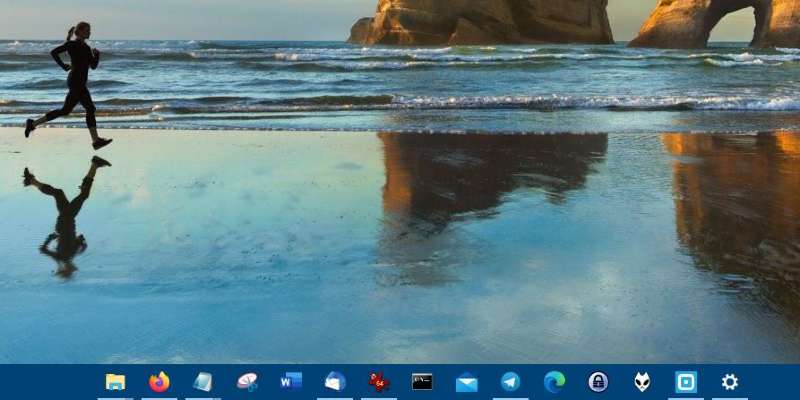



Outlines steps for how to hide the taskbar in Windows 10, freeze it, move it to a new position, change its colour and make icons smaller.
Find more technology guides, tips and advice
Windows 10 is one of the most widely used computer operating systems on the market. Microsoft has ruled the distributed operating system market for decades, and Windows 10 is by far one of the most radical operating system iterations the company has released. The best feature of Windows 10 is how you can adapt to laptops and tablets at the same time without losing functionality.
Operating systems have seen many design changes over the years, but one of the features that has remained constant is the system tray — the taskbar.
The taskbar has been redesigned many times, but the basic idea and functionality are still the same.
One of the things we all do when using a smaller Windows 10 laptop or computer is to automatically hide the taskbar. This adds to the screen real estate we get and as such doesn’t distract us with flashing notifications.
At the very bottom of the screen, black and almost inconspicuous, it comes naturally: the taskbar in Windows 10. But the small bar has a big advantage. If the buttons can no longer be seen on the rest of the display when the programs are open, it still offers direct access to the Windows menu, search, Explorer and the most important apps. But should it instead disappear under the edge? Or not be black anymore? Offer other apps? We will show you how to adapt the bar to your requirements.
CONTENTS
- Customize the color of the taskbar
- Hide or freeze the taskbar
- Change the position of the taskbar
- Add and remove apps from the system tray
- Show multiple windows as a group or individually in the system tray
- Activate “Aero Peek”
- Customize the notification area of the taskbar
Customize the color of the taskbar
You don’t want the taskbar on your screen to appear in black, but rather in an optimistic orange? A bright yellow? A color change lends itself especially if you have chosen a different background image.
To change the color of the taskbar:
- Right-click anywhere on the taskbar.
- Select Taskbar settings .
- In aufpoppenden menu, click in the left column on colors .
- You can choose a color from the categories by clicking Recent Colors or Windows colors to select.
- Not your favorite color? Then click on the plus sign in Custom Colors . In the menu that pops up, you can click on the desired tone in the color spectrum and use the slider below to set the brightness. A preview shows how the color will look. If you are satisfied, click Finish .
- Try using the slider at transparency effects which version you like better.
- Put a check mark at the start , taskbar and Information Center .
How to change the wallpaperin Windows 10
You can customize not only the taskbar but also the background image of your desktop to suit your taste. The easiest way to do this is with a picture that you have saved on your computer . Right-click the image file in Explorer, on the desktop or in the appropriate location. From the menu aufpoppenden Set as desktop background .
Tip: You can choose the colors of windows, taskbars or buttons to match the background image. Add it by right-clicking on an empty space on the screen> Customize > Colors and then put a click, tick the Automatically select an accent color from my background .
How to hide the taskbar Windows 10 steps
You don’t want to see the taskbar on the screen all the time, but only when you need it? Then there is a setting in which the taskbar “slips out” of the edge of the screen a few seconds after the last access. If you want to show them again, move the mouse pointer to the edge of the screen.
You activate the function as follows:
- Click the right mouse button on an empty spot on the taskbar and then click Taskbar settings .
- Alternatively, access the menu and by right-clicking on an empty space on the screen, and then click Customize > taskbar button.
- Set the slider under Auto-hide the taskbar in desktop mode to the right.
- On a tablet, select the slider under taskbar in tablet mode automatically hide .
In order to retain your settings and not change anything unintentionally with an accidental right-click in the taskbar , you can fix them. This is either the same menu at the top with the slider, or right-click the taskbar and then set a click, tick the Secure all taskbar . Before making any further changes, you must of course move the slider back or remove the checkmark by clicking again.
Change the position of the taskbar
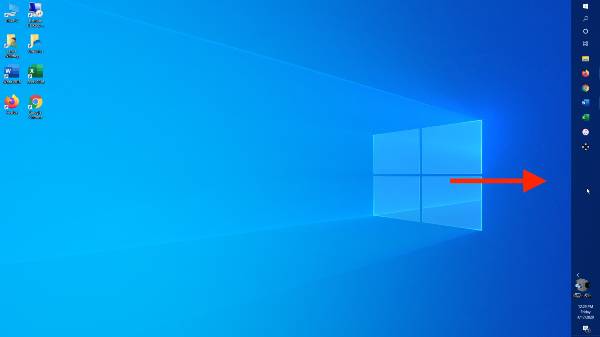
Would you prefer to see the taskbar at the top, left or right of the screen? No problem:
- Call back the taskbar settings to (by right-clicking in an empty space on the taskbar or right-click into the empty Display> Customize > Taskbar ).
- Click the arrow to open the drop-down menu next to Position of the taskbar on the screen.
- Select the desired position.
Add and remove apps from the taskbar
As a rule, buttons from the Edge browser or Explorer are preinstalled on the taskbar for direct access. You can call up the relevant program quickly with a click on the button. Can’t find your favorite program? Then easily adjust the app selection.
To display a new app as an icon on the taskbar, …
- … open the start menu by clicking on the Windows logo in the lower left corner of the screen.
- Then find the app in the alphabetical app list.
- Right click on the app.
- Select More > Pin to Taskbar .
- Alternatively, click with the right mouse button on the button of an open app, and then click Pin to taskbar .
To remove a button from the taskbar …
- … click with the right mouse button on the corresponding button in the task bar.
- Then click Detach from Taskbar .
To change the position of the button on the taskbar …
- … click the button and hold the mouse button down.
- Use the mouse pointer to drag the button to the desired location on the taskbar.
Show multiple windows as a group or individually in the system tray
By default, several open apps from the same app are displayed as a group. This means that several Word files are not displayed individually in the taskbar, but only as a single Word button. If you click on the button, you can navigate to the desired document. This form of display saves space on the taskbar. But you can ungroup in the Taskbar Settings (see previous section). Under the taskbar buttons are grouped are three options:
- Always hide captions : This is the default setting.
- If the taskbar is full : If this option is activated, the grouping is canceled, all files can then be seen individually as buttons including their names, as far as space allows. If the taskbar is full, they are grouped again.
- Never : All windows are always visible individually including their names. Depending on the number, they are pushed closer together.
To have more space on the taskbar, you can shrink the icon display – using the slider for Small icons.
Activate “Aero Peek”
Do you have many windows open and want to take a look at the desktop, for example to see how individual icons look? Then you don’t have to laboriously minimize all windows. The “Aero Peek” function enables you to preview. Move it to the taskbar settings (see previous chapter) the appropriate slider to the right. If you then drag your mouse pointer in the taskbar all the way to the right, the desktop surface is displayed behind the open windows.
Customize the notification area of the taskbar
The notification area is located in the right corner of the taskbar (or below, if you placed the tray on the right or left of the screen have). There you will find the time, date and information about the network connection or the volume of loudspeakers or headphones by default.
What’s there to see and what not, set in the taskbar settings (see chapter previous) in the menus behind symbols for display on the taskbar to select and activate system icons on or off .
Inconspicuous and yet so valuable
As inconspicuous as it may be: Because the taskbar or in the image always – if it is hidden – can be seen again with a mouse slides, it provides guidance even with dozens of open windows . Which programs are active? How do I jump from one window to the next without minimizing the others first? The taskbar provides an answer here. You can also keep an eye on the time here. It is therefore worthwhile to adapt the taskbar to your needs – a few clicks and ticks are enough and it is even more valuable.
